

Gutenberg is the default editor built into WordPress 5.0 and later, using a “Block” style design, making it relatively simple to use.
1: Enter the editor
After logging into your WordPress dashboard, click in the left sidebar menu Posts → Add New

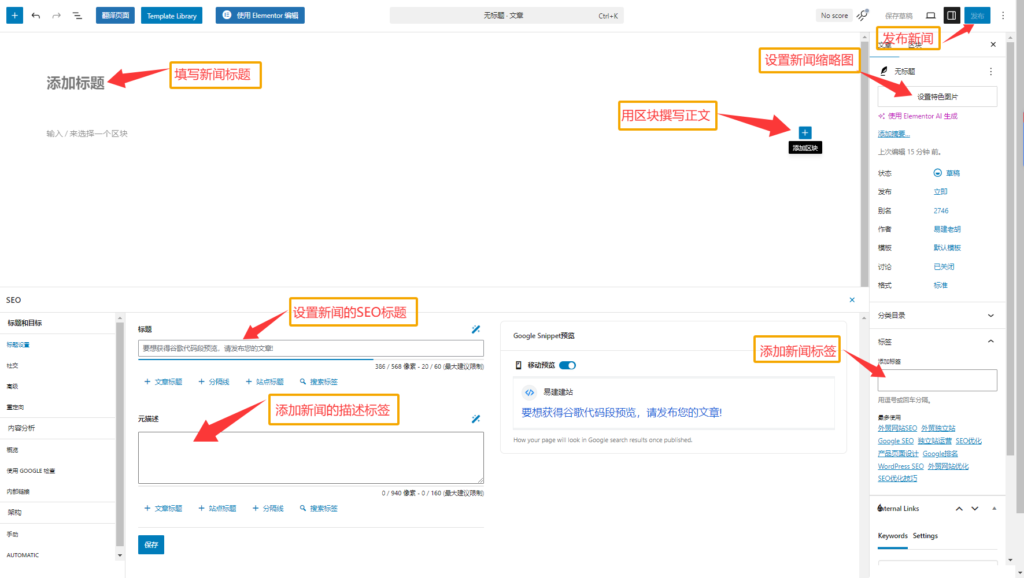
Enter the Gutenberg editor interface, and by default you will see:
- Top toolbar (add title, save draft, publish button, etc.)
- Content area, click “+” to add a block.
2: Add a title
The title is required. This title is also the default H1 title and will be displayed on the post page, list page, and browser tab. News titles should be short and concise (recommended within 60 characters), contain core keywords, and highlight the news angle to attract clicks, while avoiding exaggeration and clickbait.
Use blocks to write the content
The core of Gutenberg is blocks. Each paragraph, image, list, and button is an independent block.
Methods to add a block:
- Click in the content area “+” button

- In a new paragraph, directly press / key, enter the block name (such as
/image) to quickly search
Special note ⚠️:When writing the content, set H2-H6 headings appropriately, and be careful not to set H1, because a page has one and only one H1 tag. The news title is the H1 tag by default. For details, seeHow to correctly use H1, H2, H3 heading tags。
Edit a block:After selecting a block, the block's settings panel (Block tab) will appear on the right, where you can adjust text size, color, alignment, etc.; click the top-right corner of the block three dots (⋮) to move, copy, delete the block, or convert it to another type (such as converting a paragraph to a heading).

4: Set the news thumbnail
That is, the news cover. When setting the news thumbnail, choose an image directly related to the content, and also pay attention to compressing the file size (recommended not to exceed 200KB) and fill in the Alt text containing keywords, to balance loading speed and SEO. The recommended size is 4:3
5: Add news tags(Tags)
Add 3~8 keyword tags related to the content.
6: Optimize the news title and description tags
Yijian Website Builder will install an SEO plugin for you by default. You can fill in the SEO title and Meta description in the SEO section.
The tool will provide prompts. Keep the title tag within 60 characters and the description tag within 160 characters.
For specific tips, seeHow to write SEO titles and descriptionsthis article